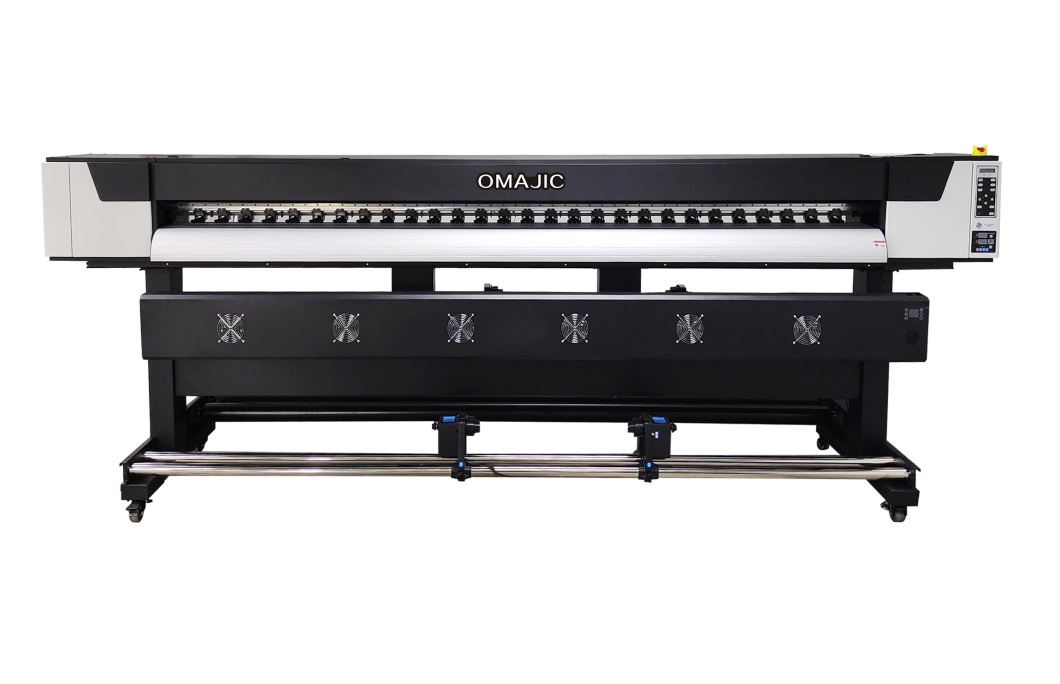
The OM-ECO3202E supports dual Epson I1600 or I3200 printheads, combining both wide-format capability and high-speed performance. It is one of the ultimate solutions for large-format printing factories handling bulk and oversized orders. Powered by Epson Micro Piezo printhead technology, it ensures outstanding image precision and color saturation even at high speeds and wide printing widths.
Key Advantages:
- Dual Epson I1600 / I3200 industrial printheads
- Wide-format printing with high-speed output
- Ideal for bulk and large-size orders
- High image precision and strong color saturation
- Designed for large-scale, professional printing factories
Wide-Format High-Speed Industrial Inkjet Printer
The OM-ECO3202E is engineered for professional large-format printing factories that demand both width and speed. Equipped with dual Epson I1600 or I3200 industrial printheads, this model delivers powerful output capacity for high-volume, large-size printing applications.
Wide Format Meets High Speed
By combining an extended printing width with high-speed performance, the OM-ECO3202E enables printing factories to efficiently handle bulk orders and oversized graphics, significantly improving overall production efficiency.
Dual Epson I1600 / I3200 Printheads
The printer supports two Epson industrial printheads, offering:
High-speed, stable output
Excellent detail reproduction
Consistent performance in continuous production environments
This flexible configuration allows businesses to balance speed, resolution, and cost based on production needs.
Epson Micro Piezo Technology
Powered by Epson Micro Piezo technology, the OM-ECO3202E delivers:
Precise ink droplet control
High image accuracy
Rich color saturation
Even during high-speed, wide-format printing, image quality remains sharp, vivid, and consistent.
Large-format advertising graphics
Commercial signage and display printing
High-volume wide-format production
Commercial printing
Industrial inkjet solutions
High-efficiency production lines requiring stable and scalable output
The negative pressure is too low. Increase the negative pressure value on the negative pressure board (previously -3.8; adjust to -4.6).
Open the Run dialog box and enter the following path: C:\Users\86188\Downloads\PF657.msi
Press Enter to install the software with administrator privileges.
Perform a firmware upgrade via the “Advanced Settings” menu.
1. Update the firmware. Alternatively, perform calibration by printing test patterns.
Switch to “High Speed Mode.” The X-axis movement speed decreases as the X-axis resolution increases; if the resolution is set too high, the movement speed will be correspondingly slower.
Verify that the signal cable connecting the Y-axis driver to the camera is connected correctly.
After connecting the signal cable, measure the voltages at terminals A+/A- and B+/B- to ensure they are within the normal range.
Confirm that the motor version is compatible with the pin configuration of the signal cable connection.
Adjust the pin connection method to match the specific version of the current driver (refer to the driver’s instruction manual).
Verify that the current pin outputs are functioning correctly.
Attempt an alternative wiring configuration.
Replace the ink stack limit switch.
Check if the signal cable for the ink stack motor is loose.
Verify that the ink stack moves smoothly; apply a small amount of lubricant if necessary.
Verify that the Y-axis gear ratio is set correctly.
Verify that the visual alignment calibration is accurate.
Verify that the camera’s physical vertical alignment is correct.
Recalibrate the X-axis and Y-axis gear ratios.
Recalibrate the visual alignment.
Calibrate the camera’s horizontal and vertical positioning.
Print the text multiple times (in multiple passes); this ensures that the fine details remain adhered and are not inadvertently removed during the film-peeling process.
Add an additional set of curing lamps, or alternatively, print using only three printheads.
1. The C-film may have been applied with the incorrect side facing down; perform a test to verify the correct orientation of the film.
2. The wrong type of C-film was used; ensure that the correct C-film is utilized.
3. The temperature setting is inappropriate; the film-transfer temperature should be set to approximately 90°C.
The heating probe has become dislodged; re-secure the heating probe.
After hot stamping and lamination, the gold foil tends to peel off when the laminate film is removed
The lamination temperature is too high, or the hot stamping ink has not fully cured. Try lowering both the lamination temperature and the UV lamp temperature.
This issue likely stems from improper alignment during transport or prior to factory shipment. Adjust the positioning via the software interface (increase values to shift left; decrease values to shift right).
Replace the motor, the driver, or the connecting cables.
1. The ink used in this flag printer is a high-temperature penetration-type ink. If the material fails to absorb the ink—resulting in ink bleed or spreading—you must check whether the material has reached its maximum ink absorption capacity limit. If so, replace the material with a different type.
Different fabric types can affect ink adhesion. Fabrics that are excessively thin may result in insufficient ink absorption, leading to ink bleed during printing or inadequate color fastness after the curing process.
You need to enable “2-pass” mode. Locate the internal settings within the control software interface and adjust the configuration accordingly (provided the software supports this functionality).
The suction force applied to the material is mismatched. Typically, the suction level should be set to approximately 30, while the material tension should be set to approximately 60.
Upon testing the electrical circuitry, it was discovered that there was no incoming voltage. After systematically tracing the power supply line, the issue was ultimately identified as a tripped circuit breaker.
Locate the paper-guide clips in the accessories box and attach them securely to both sides of the paper path.
Check the status of the print head and verify the accuracy of the customer’s design file; it was ultimately discovered that the design file contained errors.
The firmware was incomplete; the firmware was modified to incorporate the “VH” mode.
Solution: Re-flash the firmware; check to ensure the printhead ribbon cable is securely connected.
Increase the temperature or adjust the ambient environmental conditions.
1. Check the computer’s network settings; if the network port is not detected as connected, switch to a different network connection.
1. The issue may stem from components aligned with the X-axis—specifically the drive belt, linear guide rail, or encoder strip. Inspect and troubleshoot these structures.
2. The print head baseplate height is set too low; raise the height of the baseplate. (Problem resolved)
Calibrate the gear ratio and adjust the print positioning.
Reinstall the print head or reseat the ribbon cables.
To achieve a golden effect, print hot stamping varnish and then apply a thin gold film.
“I3200U: 4pass 9m2/h,6pass 6m2/h;
I600U: 8pass 6m2/h,12pass 4.5m2/h”
First, the mediums are different;
Second, TPU uses ultra-soft ink to print W+W+C+V,;
Imitation embroidery uses specialized ink to print W+W+C+V,
Jelly-like gel uses specialized ink to print V+V+C+V.
“I3200U: 4pass 9m2/h,6pass 6m2/h;
I600U: 8pass 6m2/h,12pass 4.5m2/h”
Flag machine print on facbric directly, and mainly for flag printing, sublimation is print on paper and tranfer to fabric, mainly for home textiles printing
3208 is twice the size of 3204.
Fast printing speed, high throughput, and stable operation
Cheap doesn’t mean poor quality. This machine is our lead generation product, and we’re stocking it in large quantities to reduce costs.
It is eary to install, we have engineer can help you, and we have enough installation documents.
PLUS model have 4 heads, E model only 2 heads, for different market use.
“The two types of inks used are eco-solvent and solvent printer. Eco-solvent uses mild solvent ink, while solvent printer uses solvent ink with a strong odor.
Eco-solvent is primarily used for indoor and outdoor advertising where high precision is required.
Solvent printer can be used for outdoor advertising, such as highway billboards, where high precision is not a primary concern.”
PLUS model have 4 heads, E model only 2 heads, for different market use.
Do some advertising printing
1. Vinyl Decals & Stickers;
2. Vehicle Graphics & Wraps;
3. Outdoor Banners & Signage;
4. Soft Signage & Fabric
EPSON head, like EPSON I3200E1, EPSON 1600E1, XP600, DX5 head
Printing speed depends on the number of printheads and the printing mode, typically ranging from 10 to 40 square meters per hour.
An eco-solvent printer is a type of large-format inkjet printer that uses eco-solvent ink.
An eco-solvent printer is incredibly versatile because it adheres well to vinyl, plastic, and coated media without needing expensive lamination for short-term jobs. Since the ink is flexible and weather-resistant, it is the go-to tool for sign makers, vehicle wrappers, and apparel decorators.
Problem 1: Machine displays an error upon startup.
Solution: This is almost certainly caused by an incorrect data cable connection; try reconnecting the SATA cable, or replace it entirely.
Problem 2: “Motion init failed” error displayed when the machine is powered on.
Solution: 1. Check for slow or obstructed movement. 2. Check for issues with the limit switches. 3. Restart the machine.
Problem 3: The take-up and feed motors are not operating.
Solution: The controller is receiving power input but does not light up and produces no voltage output; this indicates a faulty controller, which should be replaced immediately.
Can print golden an silver varnish, and laminate with golden an silver foil
4*i3200A4pass:10m2/h,6pass:8m2/h
1. Problem: Curling Mode — The final section of the UV print remains uncured.
Solution: Check and adjust the position of the UV lamp; verify UV lamp settings and the software’s curing delay parameters.
2. Problem: The varnish finish lacks gloss.
Solution: The UV lamp is positioned too far forward, resulting in insufficient leveling distance; the number of print passes is too low. Increase the number of passes.
3. Problem: The option for multiple varnish layers is unavailable.
Solution: The current firmware does not support this feature; a firmware modification is required.
4. Problem: Red ink is skipping (ink flow interruption).
Solution: The ink damper is defective. Replace the ink damper.
The OM-6090PRO uses a negative pressure ink supply system, while the ER-6090pro uses a siphon ink supply system.
Because the quality is higher than economic model, and more durable.
1. Problem: Software indicates an abnormal voltage reading.
Solution: The voltage is too high; lower the temperature to regulate the indoor environment.
2. Problem: The printer is exhibiting “ink-flying” (erratic ink ejection), and the issue persists—it cannot be resolved.
Solution: Check the following three areas: the power switch status, the software settings, and the input voltage to ensure there are no anomalies.
3. Problem: The machine was previously functioning normally, but now the black section of the test strip appears faint.
Solution: The customer reported that replacing the ink sac resolved the issue; the original ink sac was likely partially clogged.
4. Problem: The test strip on a new machine is incomplete or imperfect.
Solution: It is necessary to purge the air from the system and upload the waveform data.
Negative pressure ink supply system
It utilizes negative pressure to draw ink, replacing the traditional method of supplying ink through ink cartridges and ink pads.
1. Negative pressure ink supply system;
2. Ink stack moisturizing function;
3. Maximum printing height of 40cm, capable of printing on suitcases;
4. Equipped with two EPSON i600U1 printheads, capable of printing CMYK+W+V.
Problem: The printed red test strip is not straight; it appears curved.
Solution: Inspection revealed that the ink had expired; the ink needs to be replaced.
Problem: The print head is constantly jetting (uncontrollable firing).
Solution: 1. Print head issue: Replace the print head.
2. Ribbon cable issue: The connection is incorrect; replace the cable or reconnect it using the proper procedure.
3. Head board issue: Replace the head board.
Problem: When the print width exceeds 350mm, a “Width Exceeded” error occurs.
Solution: The X-margin setting is too large, the X-offset value is excessive, the buffer distance is misconfigured, or the calibration parameters are incorrect. Check the relevant parameters; the issue was ultimately resolved by re-importing the firmware.
Problem: The customer encounters an error when using the vision software to import a .prn file.
Solution: All current ICC screening methods used by RIIN are encrypted. Replace the ICC profile or modify the ICC profile’s screening method.
This is a software issue; uninstall and then reinstall the software.
1. The camera’s IP address settings are incorrect.
2. The network interface card (NIC) is not a 2.5Gbps card (a 2.5Gbps card is required).
3. Jumbo Frames are not enabled; please enable Jumbo Frames.
First, in terms of size, this machine belongs to the industrial category; secondly, in terms of configuration, this machine uses a magnetic levitation system, resulting in high quality.
Problem: Abnormal noise occurs during left-to-right movement.
Solution: The sheet metal on the crossbeam is deformed and is rubbing against the sheet metal on the printhead carriage. Adjust the mounting position of the sheet metal; additionally, it may be necessary to manually bend the sheet metal back into shape.
Problem: Height detection is abnormal. The “Up” and “Down” buttons function correctly, but errors occur specifically during automatic height detection.
Solution: The issue was traced to the height-sensing limit switch. Upon disassembly, ink was found inside the switch—causing a poor electrical connection—which had leaked in from the secondary ink bottle. The problem was resolved by reconnecting the tubing and replacing the limit switch.
Problem: Maintenance procedures for the 2513MAX model during extended holidays.
Solution: Apply moisturizing fluid to the printhead capping station, and perform standard manual physical maintenance procedures.
Problem: The optical fiber connection between the mainboard and the head board has failed.
Solution: The printhead board reported an “A” error, indicating a communication failure between the mainboard and the head board. The issue was resolved by disconnecting and then reconnecting the optical fiber cable.
It can print in various color schemes, such as fluorescent colors and light colors.
8-head GH2220 (4 colored, 2 white, 1 regular varnish, 1 hot stamping varnish)
Issue: The Y-axis shifts during visual printing on the 1016 model.
Solution: Since the camera scanning position differs from the Y-axis printing position, the Y-axis must be reset prior to every scanning and printing operation.
Issue: White ink and varnish are not being printed.
Solution: The customer has incorrectly named the spot colors; the naming convention does not meet the system requirements. The names should be formatted as “spot_1,” “spot_2,” etc.
Issue: XY printing does not occur at the designated coordinates (e.g., 100, 100).
Solution: The software has not been configured with the correct error compensation settings. Adjust these settings within the “Advanced Settings” menu (Password: 222222) under the “Other” tab.
Issue: The printed Braille characters appear incomplete or fragmented.
Solution: The font’s internal offset (inward contraction) must not be set too aggressively; the setting should be adjusted based on the specific pixel data of the image file.
Problem: A 30 mm discrepancy exists between the left and right sides of the machine.
Solution: This is likely due to vibrations during transport; please tighten the screws.
Problem: Ink output from the third and fourth sets of printheads is poor.
Solution: You need to adjust the driver and the stepping values; additionally, the base stepping value within the PM settings must be halved.
This typically occurs during the initial setup of a new machine when the origin point has not been properly calibrated. Adjust the settings within the software: if the printed position is too low, increase the value; if it is too high, decrease the value.
Disconnect the J32 cable located on the mainboard.
There is an issue with the software version; version “5.7.9.4.19.R.ADV U” cannot be used.
The 24V power supply is normal; the probe itself is defective.
Clean the underside of the wiper blade; verify the wiper blade height (adjusting it via the software’s “Factory Mode” if necessary); and adjust the negative pressure value.
Q:Why the dx7 head install at an angle ,what‘s the advantage?can 3200hd do the same way?
A:Because angled mounting can increase printing speed by 40%. 3299HD cannot
Solution: This is caused by a missing file: Prn2Bmp.exe.
Q: What’s the print speed of DX7 and i3200 head ?
A: About 1-1.5 sqm/hour
Q: How many functions can this machie make ?
A: UV flatbed, uv dtf, bottle print
Q: The color sequence displayed on the calibration page differs from that in Factory Mode, resulting in persistent calibration errors.
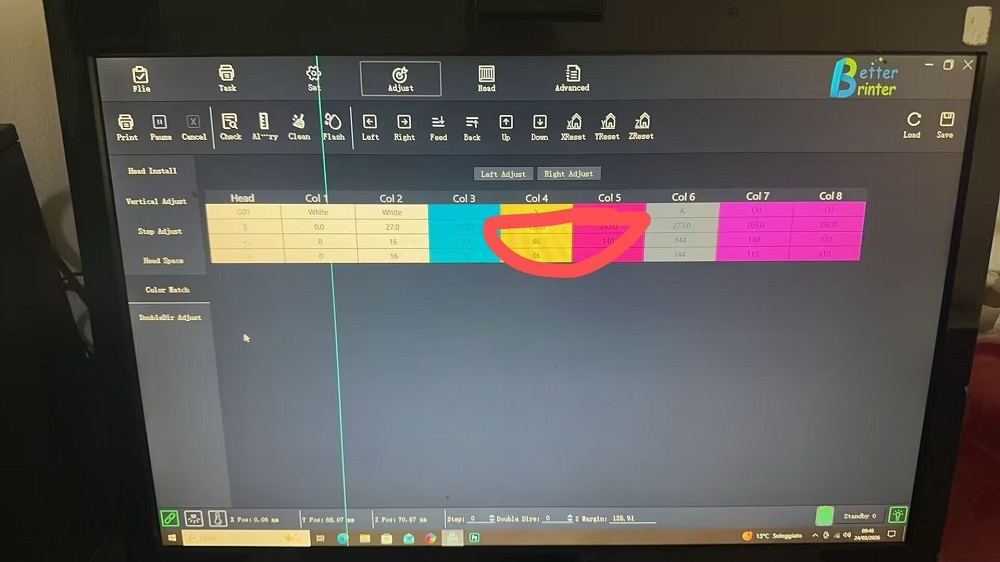
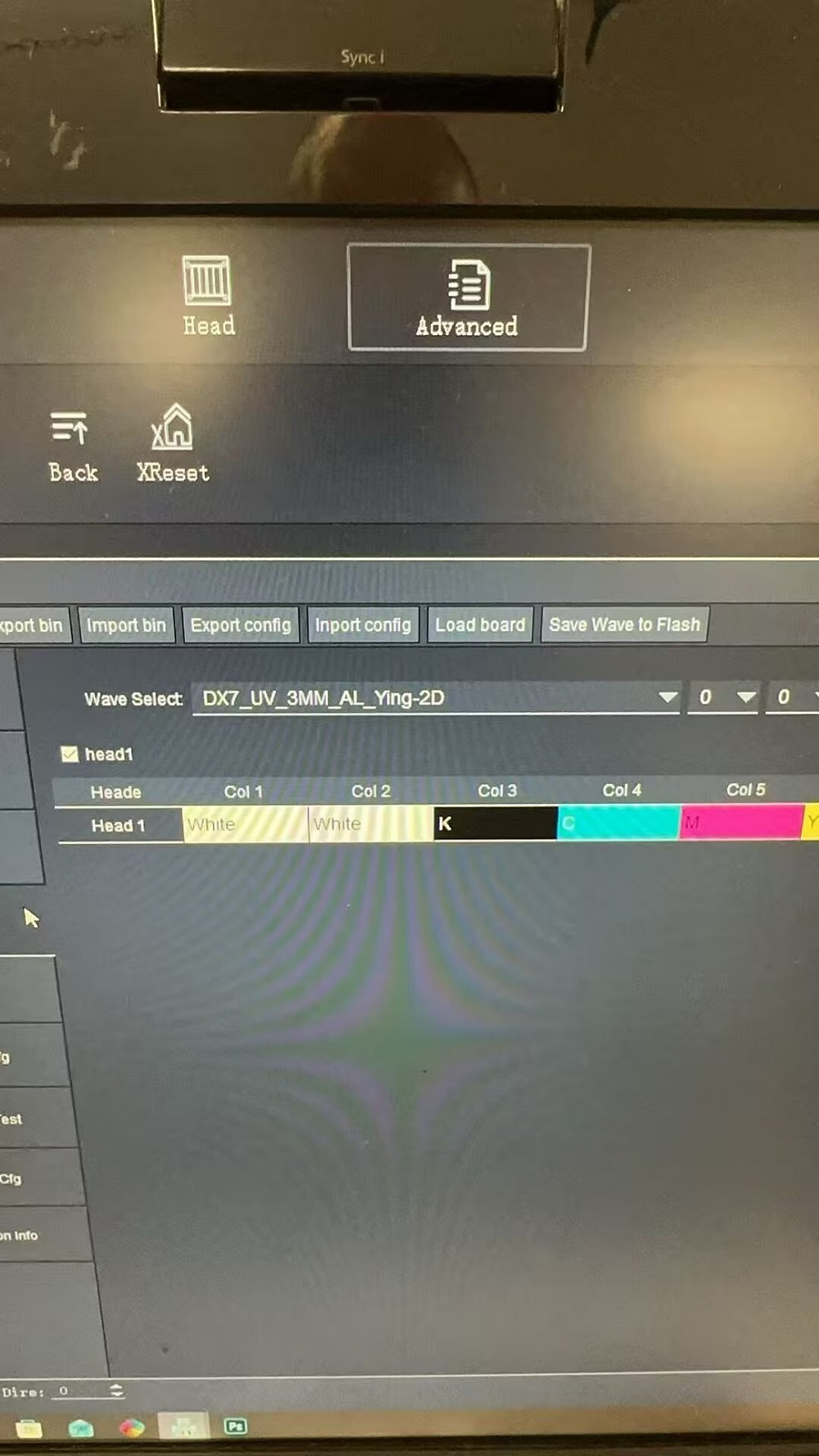
A: Select a waveform profile specific to this mode, then switch modes and restart the software.
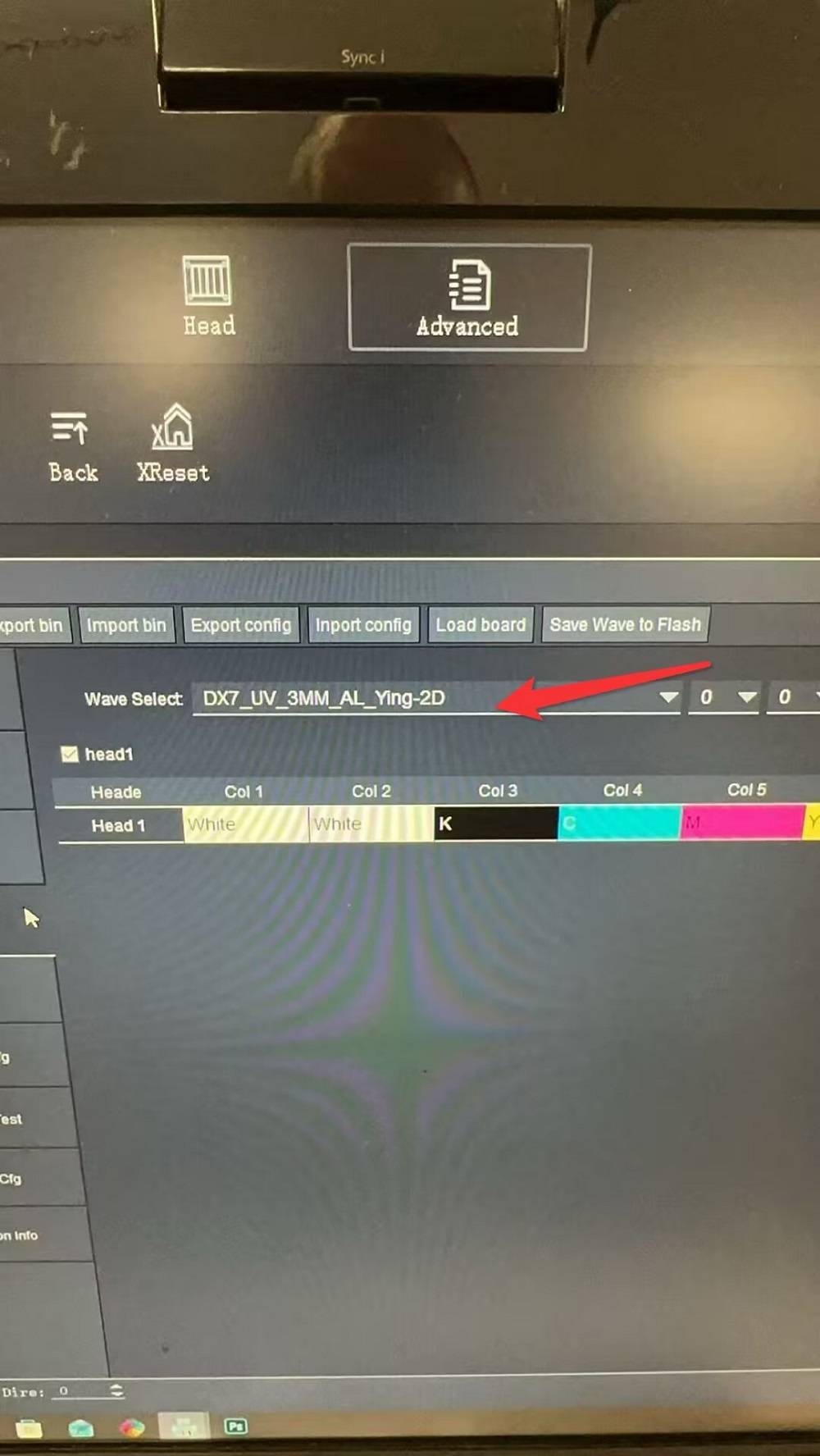
Issue: After switching the A3 “2-in-1” unit to DTF mode, the printer fails to print onto the DTF film.
Solution: Adjust the X-offset parameter within the Advanced Settings menu.
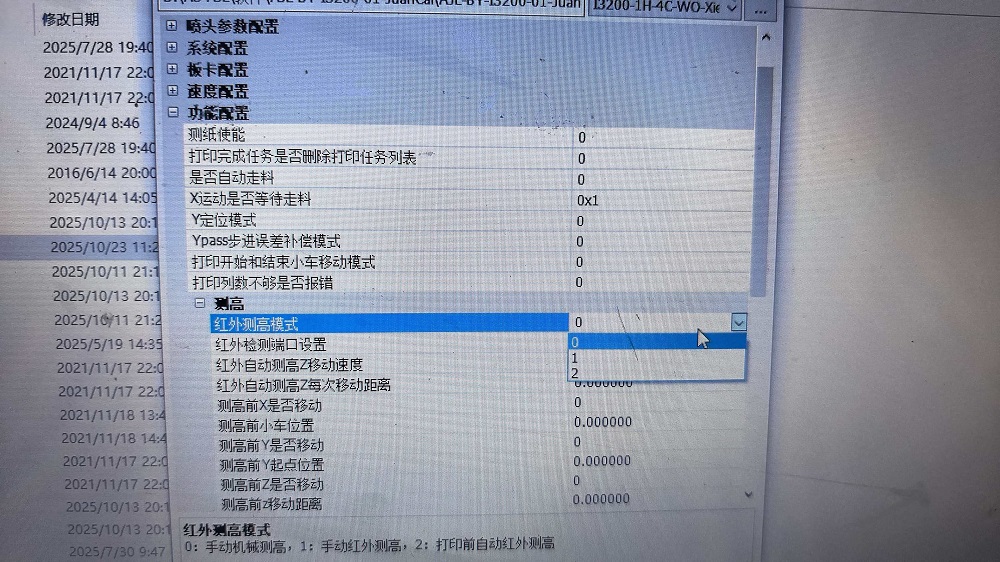
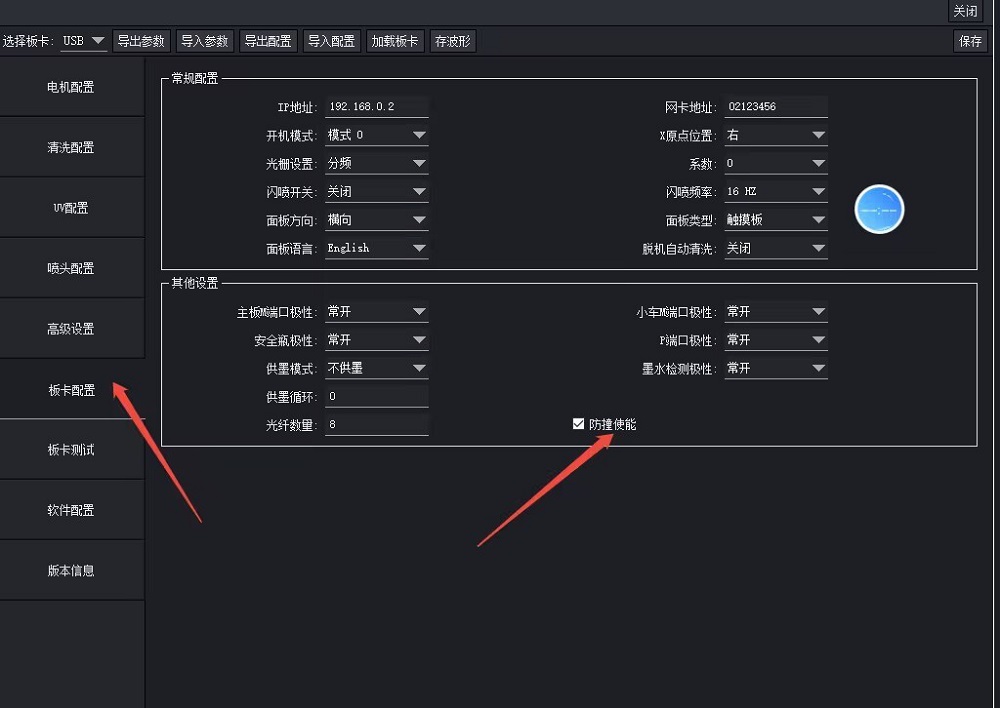
Q: The A3 “2-in-1” software consistently reports a collision detection error—regardless of whether the trigger was caused by the infrared beam sensor or an actual physical collision. If you are unable to be on-site, you can attempt to disable specific functions remotely to isolate the root cause.
A: 1. Disable the infrared beam monitoring function; simply change the corresponding parameter value from 1 to 0.
2. In the software’s Factory Mode, you can temporarily disable the collision detection system to facilitate testing.
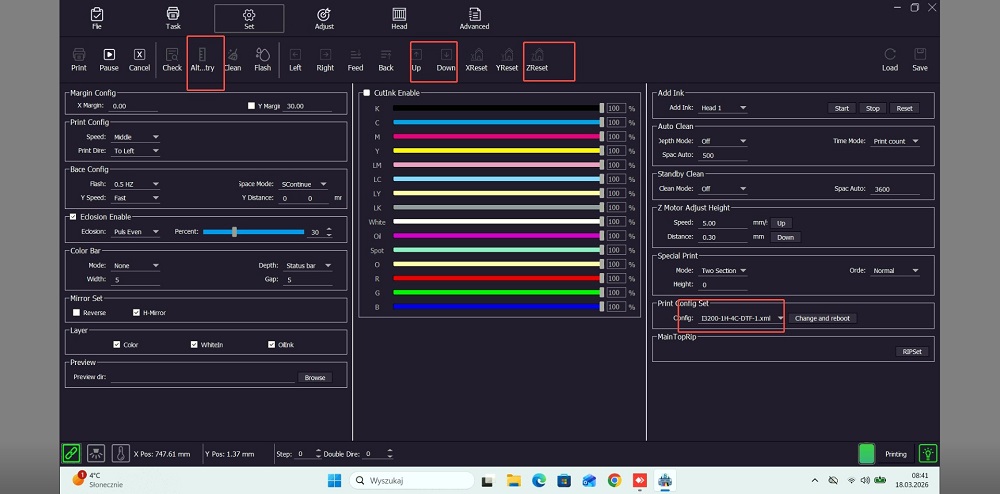
Issue: After switching to DTF mode, the toolbar continues to display Z-axis-related functions.
Solution: The installed software version is outdated; the software developer must provide an updated version.
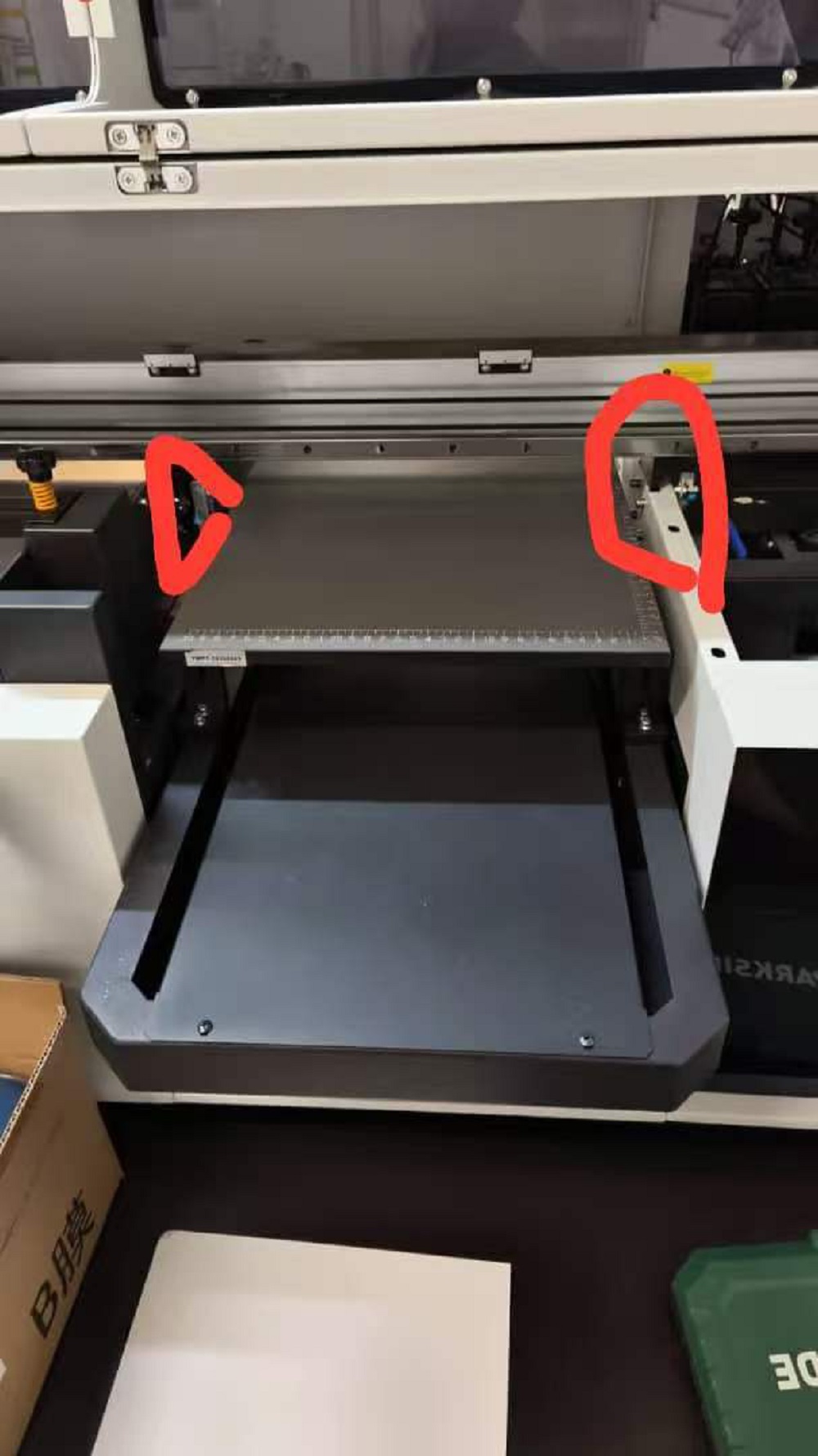
Error Message: “Insufficient number of columns printed.” Please inspect the motor, encoder strip, and collision detection sensor.
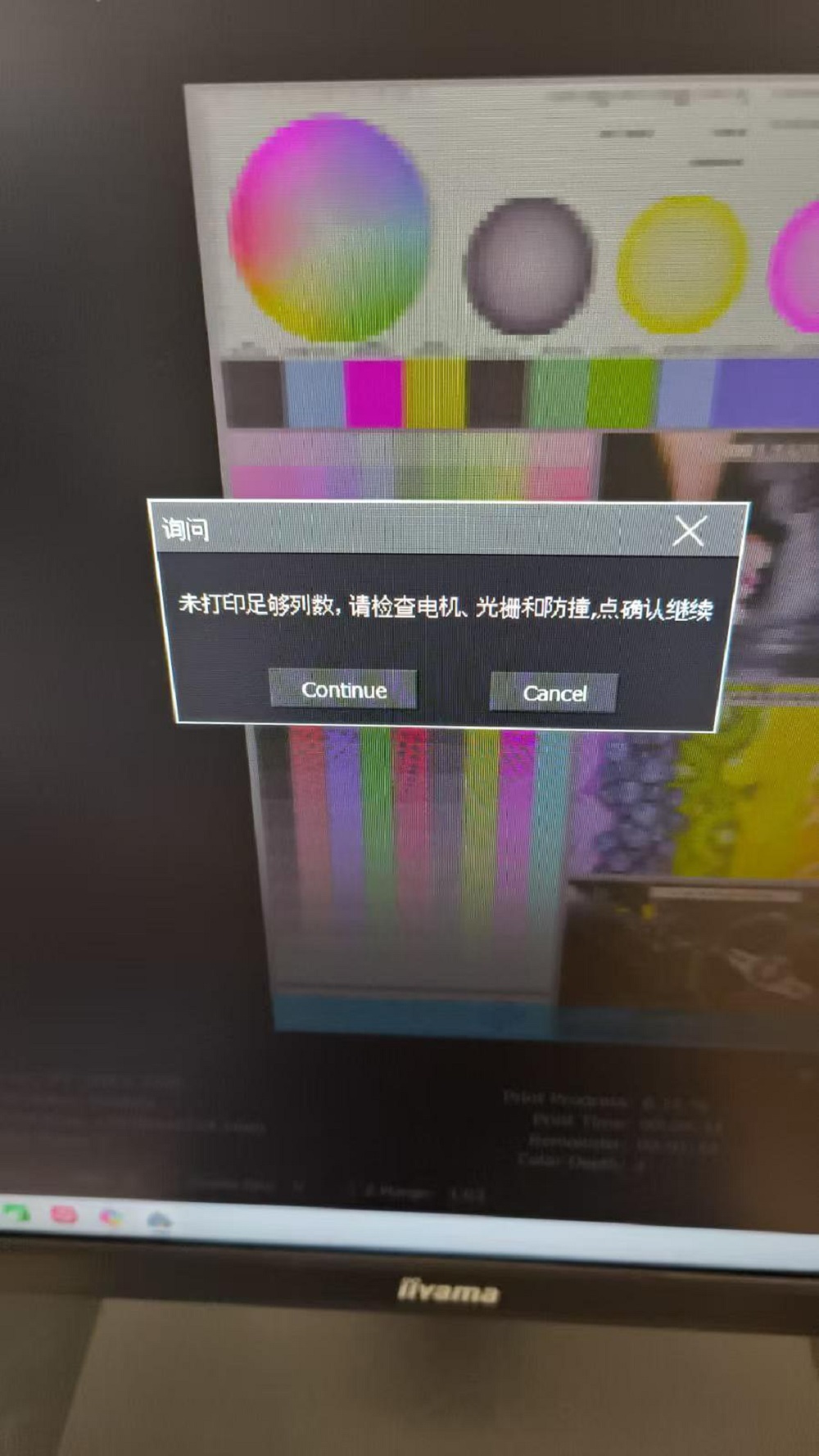
Solution: Check if the infrared sensor is obstructed or if the collision detection system has been triggered. Instruct the customer to inspect both the infrared sensor and the encoder strip; in this specific instance, the issue was resolved after powering off and restarting the machine.
1. Ordering & Logistics
Q1: What’s your delivery time?
A: Our standard delivery time is about 15 days. The specific time may vary according to the order volume and customization requirements.
Q2: What trade terms and logistics services do you provide?
A: We usually provide EXW or FOB quotes. Our cooperative freight forwarder in China has been working with us for over 15 years, and we provide safe and secure international sea freight and integrated logistics transportation services.
2. Setup & Technical Support
Q3: How can we start to use the printer?
A: After your order is dispatched and before it arrives, we will set up a dedicated after-sales service group specifically for you. Your assigned technician will provide all instructional videos and real-time online technical support to guide you through the entire installation and operation process.
Q4: What is your technical support capability?
A: All of our technicians who are speaking bilingual online 24 hours a day to solve your problems. If needed, they can also go to your country to provide on-site training.
Q5: Can you provide sample test printing service?
A: Of course. You can send us the picture you want to print, and we will record the real printing process and show you the final printing effect video.
3. Warranty & After-sales
Q6: What kind of warranty service does Ailygroup provide?
A: We provide a 12-month (1 year) warranty for the machine (excluding printhead and ink-contact parts) and lifetime online technical support.
4. Consumables, Spare Parts & Maintenance
Q7: Where can I buy spare parts and consumables (ink, film, etc.)?
A: We supply a full range of consumables and spare parts, including printhead, film, powder, ink, and maintenance kits. The printer does not come with ink by default; if you need to buy it with the machine, please contact our us now.
Q8: How should I maintain the printer?
A: Daily automatic cleaning is recommended. Ailygroup some printers feature an optimized ink circulation system to reduce clogging and minimize maintenance time.
5. Investment Value
Q9: Is the investment cost high?
A: No. Ailygroup printer systems are designed for low initial investment, small footprint, and high output efficiency—ideal for small studios, POD (Print-on-Demand) sellers, and growing print shops.
Q10:what’s the printing cost?
A:A:Usually,1 square meters need cost about $1. Printing cost is very low.
An AI UV flatbed printer is an advanced industrial printing machine equipped with an intelligent scanning system that automatically detects material position and performs precise alignment before printing. Compared with traditional UV printers, it eliminates manual positioning, reduces human error, and significantly improves production efficiency and print consistency.
An AI UV flatbed printer is an advanced industrial printing machine equipped with an intelligent scanning system that automatically detects material position and performs precise alignment before printing. Compared with traditional UV printers, it eliminates manual positioning, reduces human error, and significantly improves production efficiency and print consistency.
The 2513 AI UV flatbed printer supports printing on a wide range of rigid and flat materials, including acrylic, glass, metal, wood, PVC, ceramic, and plastic. Its UV curing technology ensures strong adhesion and vibrant color output across different surfaces.
This AI UV flatbed printer is widely used in industries such as advertising signage, interior decoration, packaging, industrial panel printing, and customized product manufacturing, where high precision and efficiency are required.
The printer delivers high-resolution printing with sharp details, vibrant colors, and excellent durability. UV curing technology ensures that prints are scratch-resistant, waterproof, and long-lasting, even in demanding environments.
Yes, the UV3060 flatbed printer can print not only on flat or slightly curved surfaces (with a height difference usually within 1-2mm), but also on cylindrical objects (such as thermos cups and lipstick tubes), but this requires purchasing a rotating fixture.
Due to the size limitations, it is mainly used for printing small batches of personalized custom products, such as: mobile phone cases and covers (especially with embossed effects), business cards, greeting cards, invitations, cosmetic packaging, wine box packaging, acrylic signs, keychains, wood panel paintings, switch panel stickers, USB drives, mouse pads, and badges.
Printing Media: Traditional printers mainly print on paper; UV flatbed printers can print on almost all flat materials, such as mobile phone cases, acrylic, wood, metal, glass, and tiles.
Ink: Traditional ink is solvent-based or water-based and dries slowly; UV ink dries instantly and has waterproof, scratch-resistant, and UV-resistant properties.
Embossed Effect: UV printers can print 3D effects and tactile textures by stacking ink.
It can handle a wide variety of media including vinyl, PVC, coated fabrics, banner materials, and more. Its versatility makes it suitable for diverse commercial printing applications.
This model supports Epson XP600, I1600, or I3200 printheads, allowing flexible configurations for precision and speed depending on your production requirements.
The OM-ECO1901H supports a maximum printing width of 1.9 meters (74 inches), making it ideal for large-format banners, posters, and commercial graphics.
BLOG
Deliver our value with content.
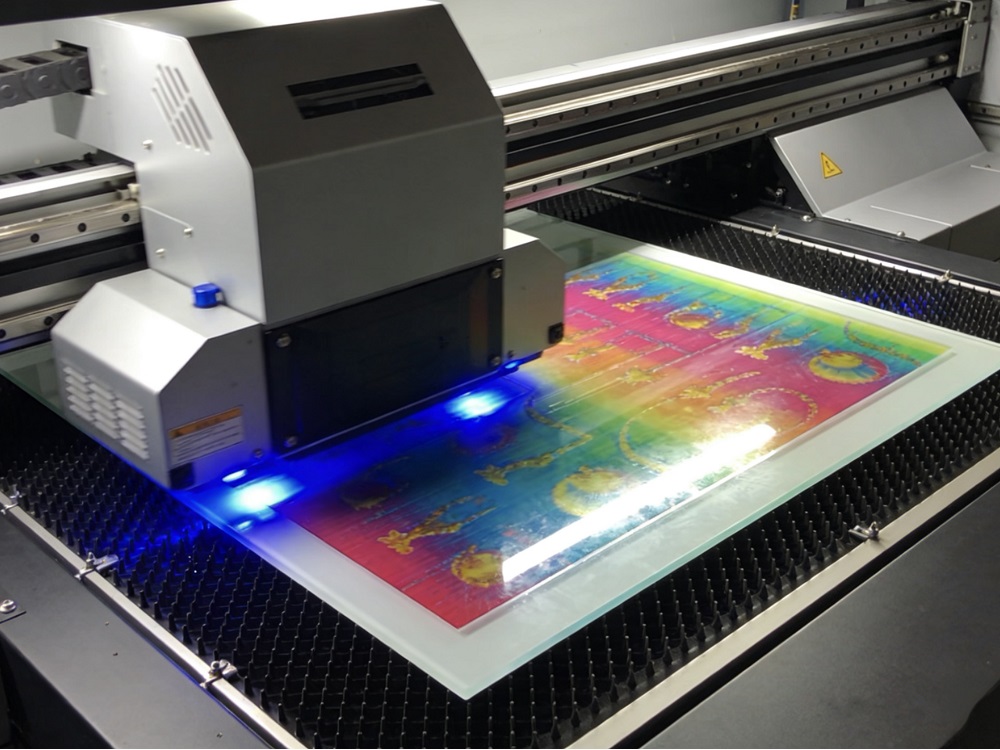
What Is the Lifespan of a UV Flatbed Printer? A Comprehensive Guide for Businesses
Understanding the lifespan of a UV flatbed printer is essential for printing businesses when planning equipment budgets and long-term operations. [...]
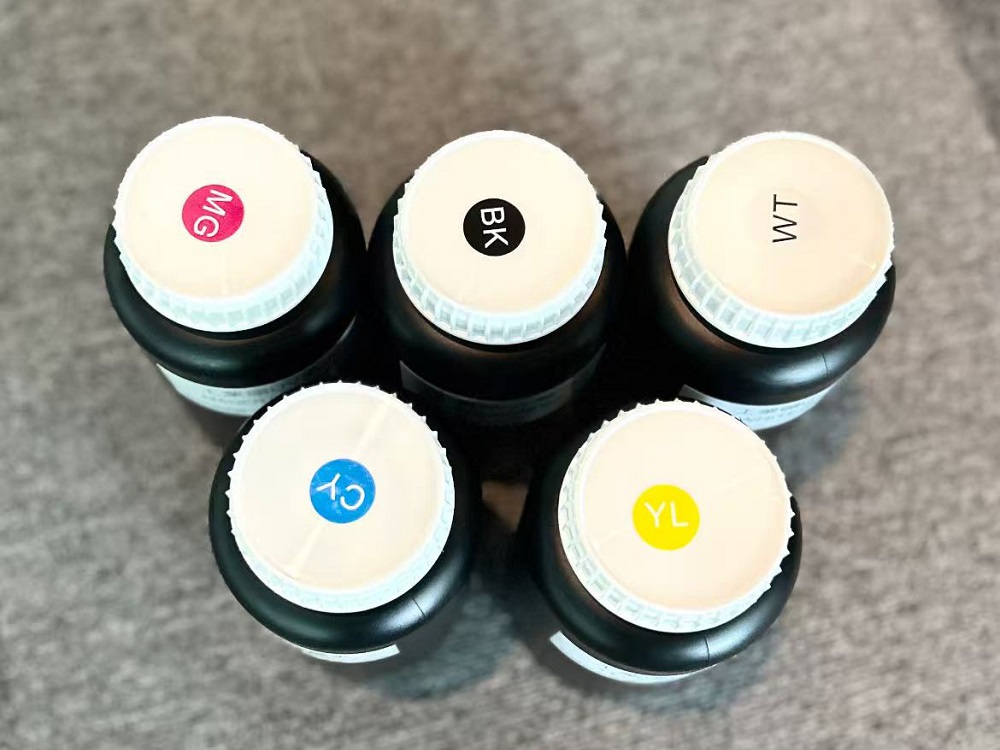
Is Your UV Flatbed Printer Eating Profits? 3 Smart Hacks to Save 30% on Consumables
If you're in the printing business, you know the feeling. The machine runs all day. Ink, boards, parts — they [...]
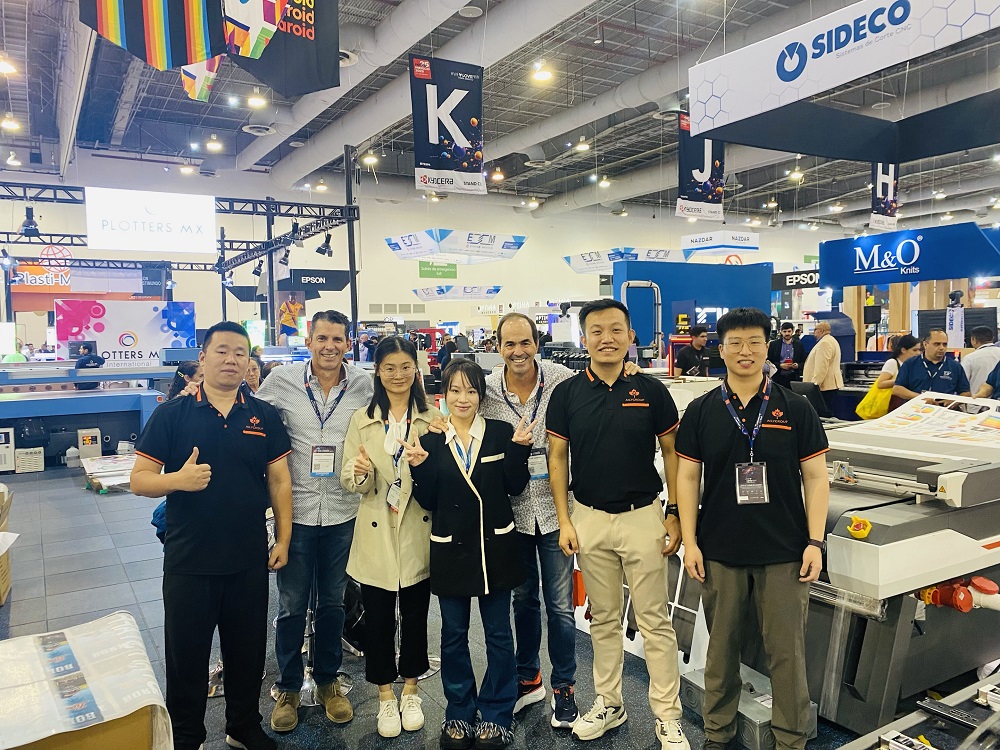
2025 Shanghai International Printing Exhibition
UV AI flatbed series,A3 Flatbed/A3UV DTF all-in-one machine,Nozzle configuration: A3/A3MAX (Epson DX7/HD3200), A4 (Epson I1600) Highlights: Supports UV curing and [...]